什么是 io.github.apiarya/wemo?
控制 WeMo 智能家居设备,支持发现设备、开关切换、亮度调节及 HomeKit 代码管理。
README
WeMo MCP Server
Control WeMo smart home devices through AI assistants using natural language.
mcp-name: io.github.apiarya/wemo






Table of Contents
- Overview
- Prerequisites
- Quick Start
- Connect
- Configuration
- MCP Tools
- MCP Capabilities
- How It Works
- Feature Comparison
- Development
- Contributing
- License
- Acknowledgments
Overview
Seamlessly integrate WeMo smart home devices with AI assistants through the Model Context Protocol. Built on pywemo, this server enables natural language control of your WeMo devices with intelligent multi-phase discovery.
Example Usage
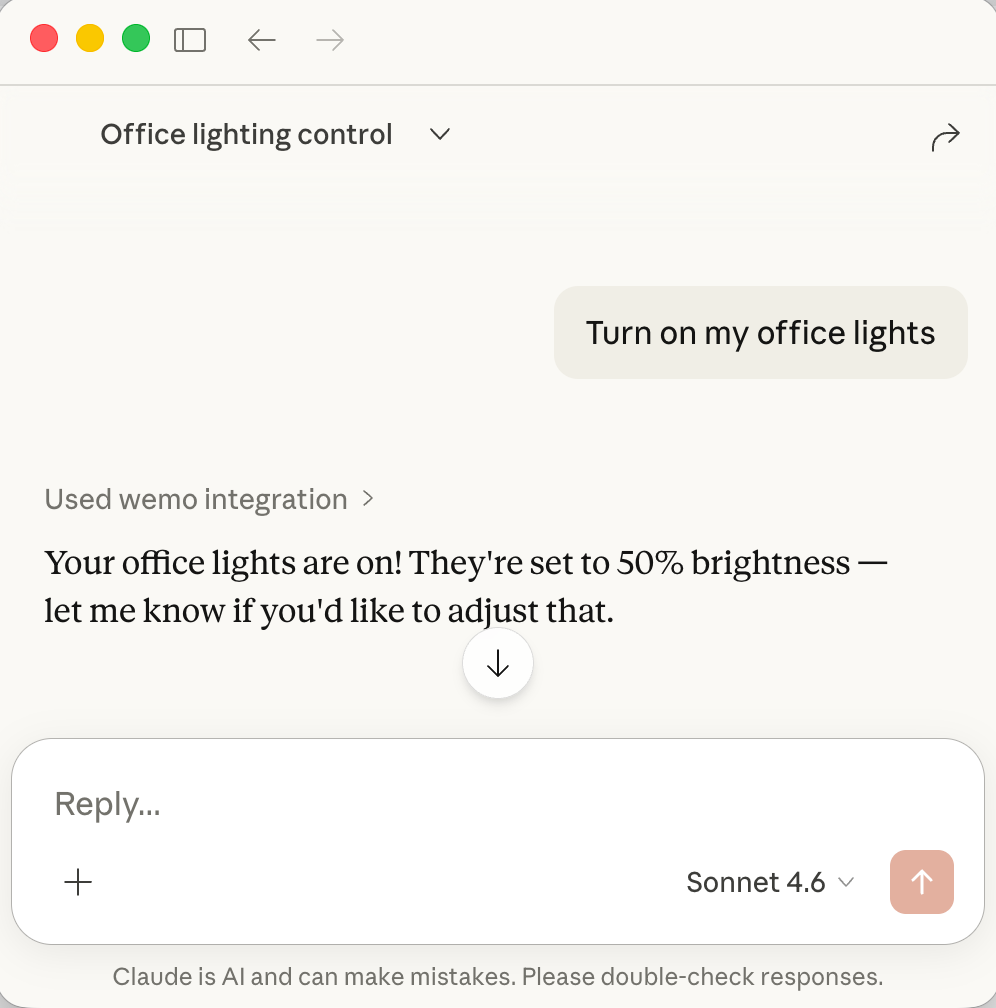
Control WeMo devices through AI assistants with natural language - just ask in plain English!
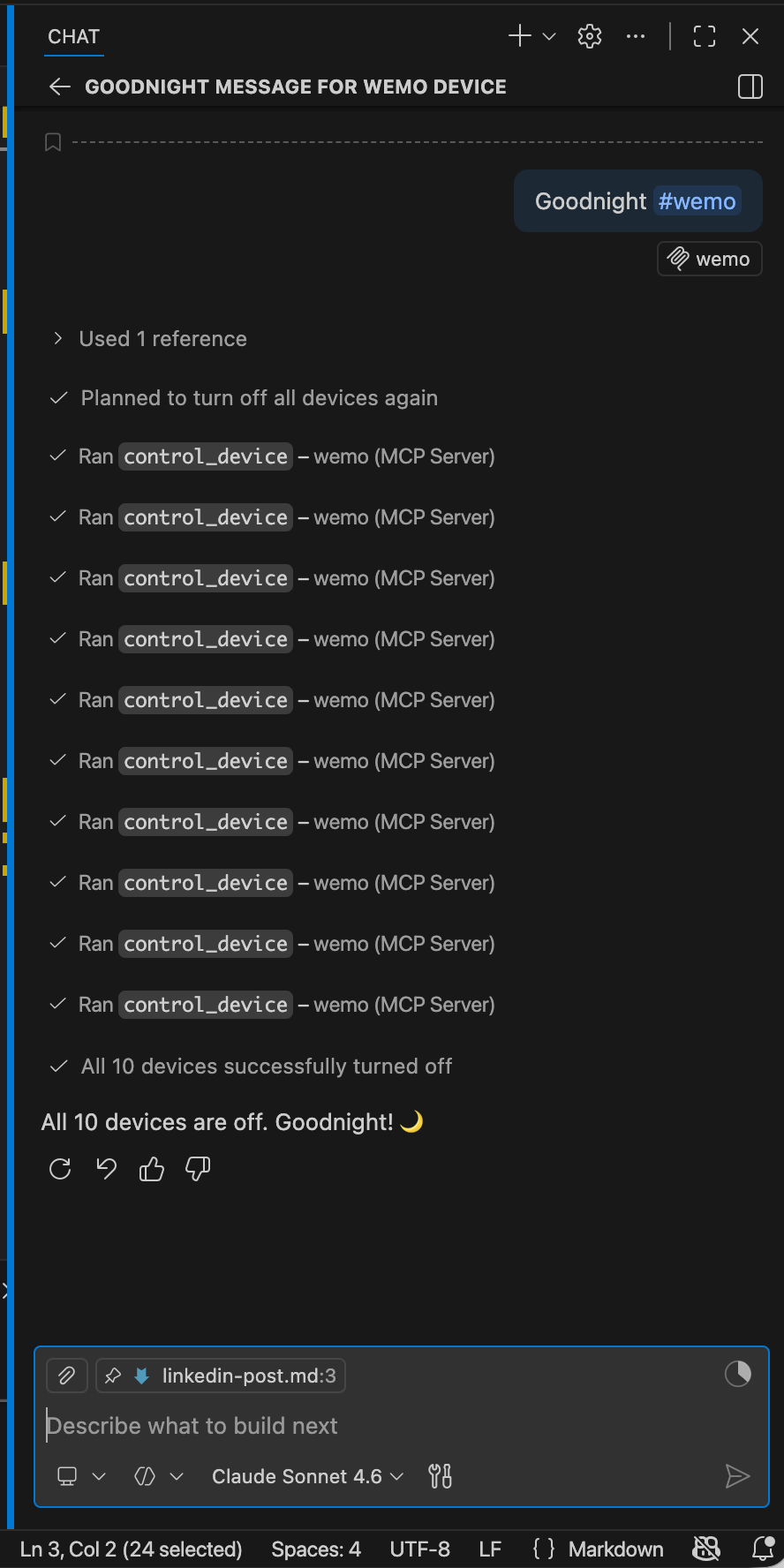
"Goodnight" — one command turns off every device in the house
Key Features
- 🔍 Smart Discovery - Multi-phase scanning (UPnP/SSDP + network ports) with 100% reliability
- ⚡ Fast Scanning - Parallel probes with 60 concurrent workers (~23-30s for full subnet)
- 🎛️ Full Control - On/off/toggle/brightness control for all device types
- ✏️ Device Management - Rename devices and extract HomeKit setup codes
- 📊 Real-time Status - Query device state and brightness
- 💾 Smart Caching - Persistent device cache with 1-hour TTL survives restarts
- 🔧 Configurable - YAML config files + environment variables for all settings
- 🔄 Auto-Retry - Automatic retry with exponential backoff for network errors
- 🛡️ Error Handling - Detailed error messages with actionable suggestions
- 🔌 Universal - Works with any MCP client (Claude, VS Code, Cursor, etc.)
- 📡 MCP Resources - Live device state via
devices://anddevice://{id}URIs - 💬 MCP Prompts - Built-in guided prompts: discover, status report, scene control, troubleshoot
- 🗣️ MCP Elicitations - Interactive clarification when subnet or device name is ambiguous
Prerequisites
All configurations use uvx (from the uv Python package manager) to run the server. Install uv first:
# macOS/Linux
curl -LsSf https://astral.sh/uv/install.sh | sh

# macOS with Homebrew
brew install uv

# Windows
powershell -c "irm https://astral.sh/uv/install.ps1 | iex"
After installation, restart your terminal and verify:
uvx --version
Quick Start
Get started in seconds with Claude Code CLI:
claude mcp add wemo -- uvx wemo-mcp-server
Connect
One-Click Installation
Click your client to install instantly:
| Client | Install |
|---|---|
| Claude Desktop |  |
| Claude Code CLI | Run: claude mcp add wemo -- uvx wemo-mcp-server |
| VS Code |  |
| Cursor |  |
| Cline | Manual config (VS Code extension) |
| Windsurf | Manual config |
| Zed | Manual config |
| Continue | Manual config (VS Code extension) |
Manual Configuration
Claude Desktop
Edit ~/Library/Application Support/Claude/claude_desktop_config.json:
{
  "mcpServers": {
    "wemo": {
      "command": "uvx",
      "args": ["wemo-mcp-server"],
      "env": {
        "WEMO_MCP_DEFAULT_SUBNET": "192.168.1.0/24"
      }
    }
  }
}
Restart Claude Desktop after saving.
VS Code
Edit ~/.vscode/mcp.json:
{
  "servers": {
    "wemo": {
      "type": "stdio",
      "command": "uvx",
      "args": ["wemo-mcp-server"],
      "env": {
        "WEMO_MCP_DEFAULT_SUBNET": "192.168.1.0/24"
      }
    }
  }
}
Reload VS Code after saving.
Cursor
Edit ~/.cursor/mcp.json:
{
  "servers": {
    "wemo": {
      "type": "stdio",
      "command": "uvx",
      "args": ["wemo-mcp-server"]
    }
  }
}
Restart Cursor after saving.
Cline
Cline is a VS Code extension. Add to VS Code's settings.json:
{
  "mcp.servers": {
    "wemo": {
      "command": "uvx",
      "args": ["wemo-mcp-server"]
    }
  }
}
Reload VS Code after saving.
Windsurf
Edit ~/.windsurf/mcp.json:
{
  "mcpServers": {
    "wemo": {
      "command": "uvx",
      "args": ["wemo-mcp-server"]
    }
  }
}
Restart Windsurf after saving.
Zed
Edit ~/.config/zed/settings.json:
{
  "context_servers": {
    "wemo": {
      "command": "uvx",
      "args": ["wemo-mcp-server"]
    }
  }
}
Restart Zed after saving.
Continue
Continue is a VS Code extension. Edit ~/.continue/config.json:
{
  "mcpServers": [
    {
      "name": "wemo",
      "command": "uvx",
      "args": ["wemo-mcp-server"]
    }
  ]
}
Reload VS Code after saving.
Configuration
The WeMo MCP Server supports flexible configuration through YAML files and environment variables.
Quick Configuration
The most important setting is your network subnet — the server defaults to 192.168.1.0/24 but your devices may be on a different subnet (e.g. 192.168.86.0/24).
Set it directly in your MCP client config using env:
"env": {
  "WEMO_MCP_DEFAULT_SUBNET": "192.168.86.0/24"
}
Or export it before starting the server:
Using Environment Variables (simplest):
export WEMO_MCP_DEFAULT_SUBNET="192.168.1.0/24"
export WEMO_MCP_CACHE_TTL=7200
export WEMO_MCP_LOG_LEVEL=DEBUG
Using YAML Config File:
# Copy example config and customize
cp config.example.yaml config.yaml
# Edit config.yaml with your settings
Configuration Options
| Setting | Environment Variable | Default | Description |
|---|---|---|---|
| Network | |||
| Default subnet | WEMO_MCP_DEFAULT_SUBNET | 192.168.1.0/24 | Network to scan for devices |
| Scan timeout | WEMO_MCP_SCAN_TIMEOUT | 0.6 | Port probe timeout (seconds) |
| Max workers | WEMO_MCP_MAX_WORKERS | 60 | Concurrent scanning threads |
| Cache | |||
| Enable cache | WEMO_MCP_CACHE_ENABLED | true | Persistent device caching |
| Cache file | WEMO_MCP_CACHE_FILE | ~/.wemo_mcp_cache.json | Cache file location |
| Cache TTL | WEMO_MCP_CACHE_TTL | 3600 | Cache lifetime (seconds) |
| Logging | |||
| Log level | WEMO_MCP_LOG_LEVEL | INFO | DEBUG, INFO, WARNING, ERROR |
Example Configurations
Large Network (multiple subnets):
export WEMO_MCP_DEFAULT_SUBNET="10.0.0.0/16"
export WEMO_MCP_SCAN_TIMEOUT=1.0
export WEMO_MCP_MAX_WORKERS=100
Debug Mode:
export WEMO_MCP_LOG_LEVEL=DEBUG
export WEMO_MCP_CACHE_TTL=300  # 5 minutes
Disable Caching:
export WEMO_MCP_CACHE_ENABLED=false
See config.example.yaml and .env.example for complete configuration templates.
For detailed configuration guide, see CONFIGURATION.md.
MCP Tools
1. scan_network
Discover WeMo devices on your network using intelligent multi-phase scanning.
Example Prompts:
- "Scan for WeMo devices on my network"
- "Find all WeMo devices"
- "Discover devices on 192.168.1.0/24"
Example Response:
Found 12 WeMo devices in 23.5 seconds:

1. Office Light (Dimmer) - 192.168.1.100 - OFF
2. Living Room (Switch) - 192.168.1.101 - ON
3. Bedroom Lamp (Dimmer) - 192.168.1.102 - OFF
...
2. list_devices
List all devices cached from previous scans.
Example Prompts:
- "List all my WeMo devices"
- "Show me all devices"
- "What devices do you know about?"
Example Response:
12 devices in cache:

- Office Light (Dimmer) at 192.168.1.100
- Living Room (Switch) at 192.168.1.101
- Bedroom Lamp (Dimmer) at 192.168.1.102
...
3. get_device_status
Get current state and information for a specific device.
Example Prompts:
- "Is the office light on?"
- "What's the status of the bedroom lamp?"
- "Check the living room switch"
- "What's the brightness of office light?"
Example Response:
Office Light (Dimmer):
- State: OFF
- Brightness: 75%
- IP: 192.168.1.100
- Model: DimmerLongPress
4. control_device
Control a WeMo device (on/off/toggle/brightness).
Example Prompts:
- "Turn on the office light"
- "Turn off the living room"
- "Toggle the bedroom lamp"
- "Set office light to 75%"
- "Dim the bedroom lamp to 50%"
Example Response:
✓ Office Light turned ON
  Brightness set to 75%
  Current state: ON
5. rename_device
Rename a WeMo device (change its friendly name).
Example Prompts:
- "Rename Office Dimmer to Office Light"
- "Change the name of the bedroom device to Bedroom Lamp"
- "Call the living room switch 'Main Light'"
Example Response:
✓ Device renamed successfully
  'Office Dimmer' → 'Office Light'
  IP: 192.168.1.100

The new name will appear in the WeMo app and all control interfaces.
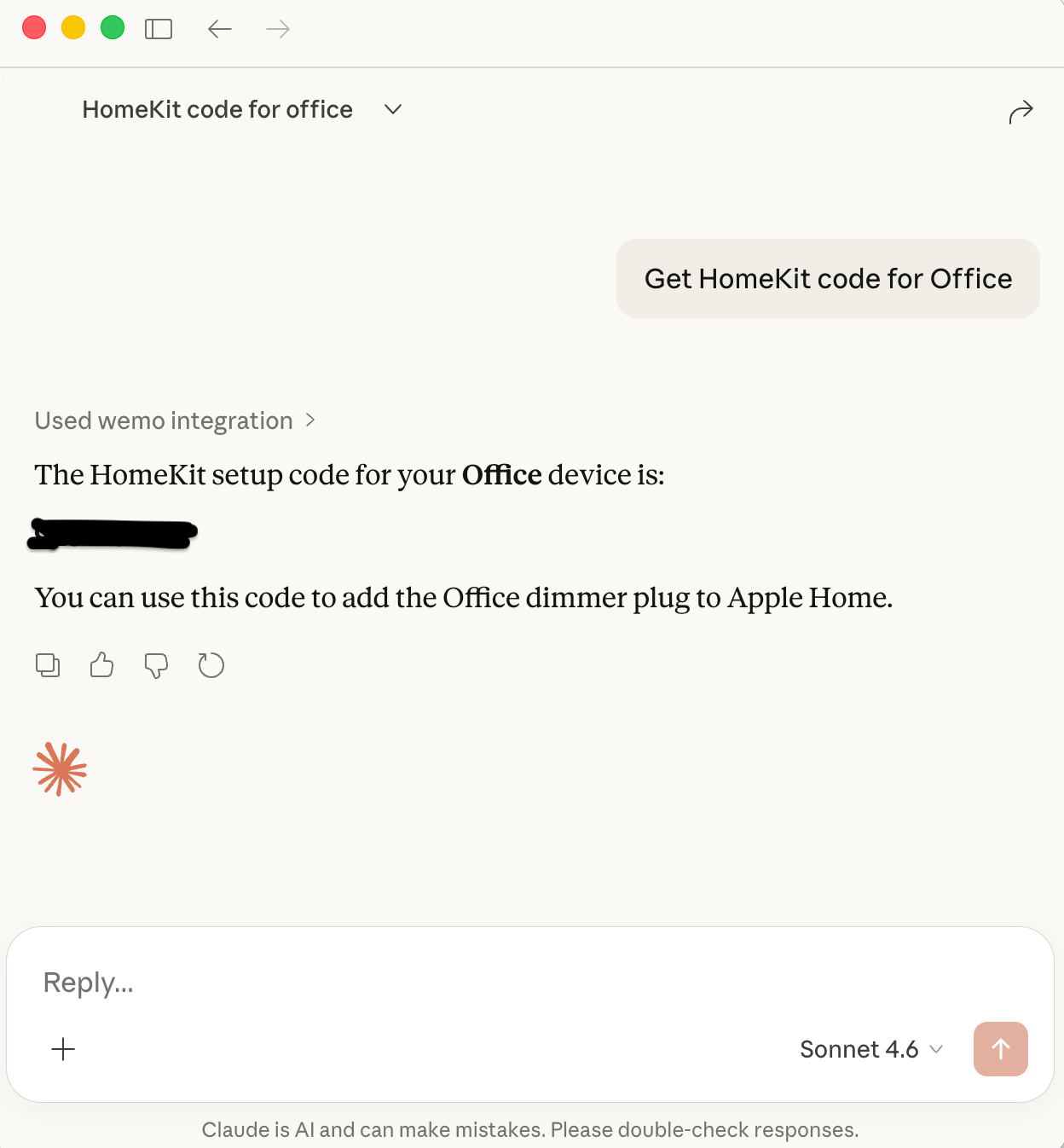
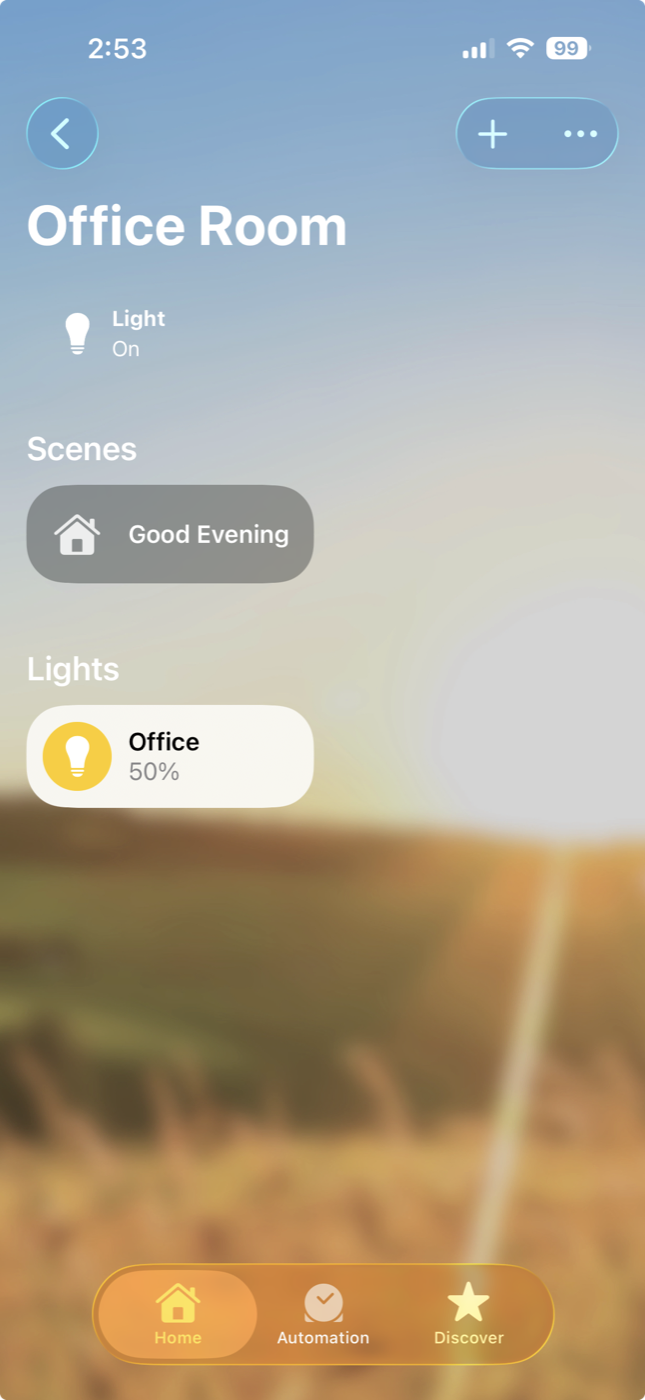
6. get_homekit_code
Get the HomeKit setup code for a WeMo device.
Example Prompts:
- "Get the HomeKit code for Office Light"
- "What's the HomeKit setup code for the bedroom lamp?"
- "Show me the HomeKit code for all devices"
Example Response:
HomeKit Setup Code for 'Office Light':
  123-45-678

Use this code to add the device to Apple Home.
Note: Not all WeMo devices support HomeKit. If a device doesn't support HomeKit, you'll get an error message.
7. get_cache_info
Get information about the persistent device cache.
Example Prompts:
- "Show me cache information"
- "Is the device cache expired?"
- "How many devices are cached?"
Example Response:
Device Cache Status:
  ✅ Cache exists
  📁 Location: ~/.wemo_mcp_cache.json
  📊 Devices: 12
  ⏰ Age: 1,234 seconds (20.6 minutes)
  💾 TTL: 3,600 seconds (1 hour)
  ✅ Status: Valid (not expired)
8. clear_cache
Clear the persistent device cache to force a fresh scan.
Example Prompts:
- "Clear the device cache"
- "Reset the cache and rescan"
- "Delete cached devices"
Example Response:
✅ Cache cleared successfully
Next scan will discover devices fresh.
Run scan_network to rebuild the cache.
Note: This clears both the persistent cache file and in-memory cache. After clearing, run scan_network to rediscover devices.
9. get_configuration
View current server configuration settings.
Example Prompts:
- "Show me the server configuration"
- "What are the current settings?"
- "Display configuration"
Example Response:
Current Configuration:
  Network:
    • Default subnet: 192.168.1.0/24
    • Scan timeout: 0.6 seconds
    • Max workers: 60
  Cache:
    • Enabled: true
    • File: ~/.wemo_mcp_cache.json
    • TTL: 3600 seconds (1 hour)
  Logging:
    • Level: INFO
Note: Shows all configuration including defaults and environment variable overrides. Use environment variables with WEMO_MCP_ prefix to customize.
MCP Capabilities
Beyond tools, this server exposes the full suite of MCP primitives.
Resources
Subscribe to live device data without calling a tool:
| URI | Description |
|---|---|
devices:// | JSON index of all cached devices |
device://{name-or-ip} | Live state for a specific device (URL-encoded name supported) |
Clients that support MCP Resources (VS Code, MCP Inspector) can read these directly.
Prompts
Four built-in guided prompts available via / slash commands in supporting clients:
| Prompt | Description |
|---|---|
discover-devices | Guided network scan with subnet selection |
device-status-report | Summary report of all device states |
activate-scene | Control multiple devices as a scene |
troubleshoot-device | Step-by-step device troubleshooting |
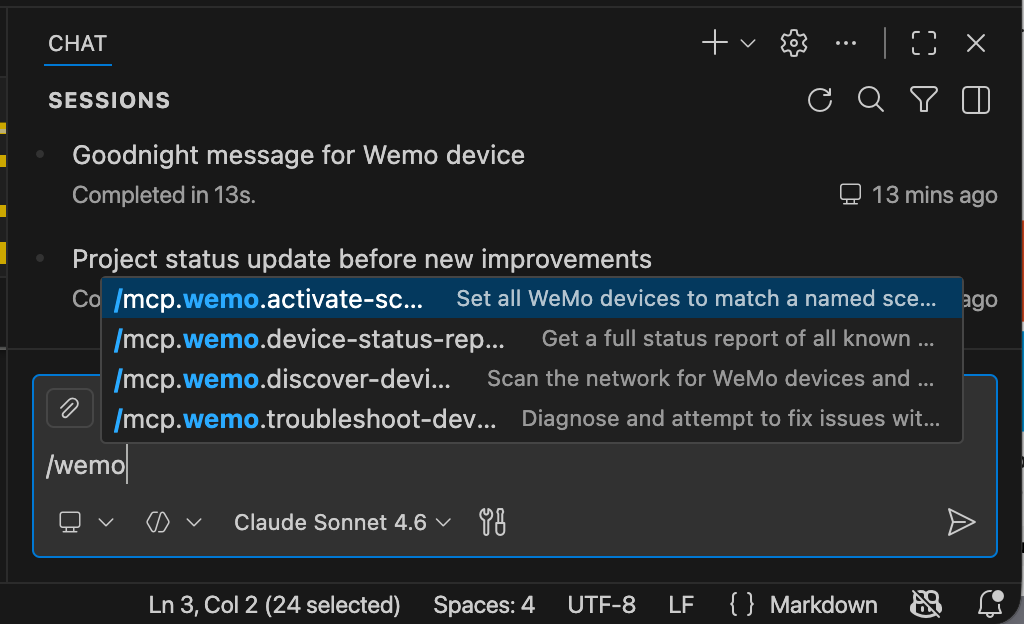
All four prompts surfaced as /mcp.wemo.* slash commands in VS Code
Elicitations
The server proactively asks for missing information rather than failing silently:
scan_network— if no custom subnet is configured (default192.168.1.0/24), asks which subnet to scan before proceedingcontrol_device— if a device name isn't found in cache, presents closest matches and asks which device was intended
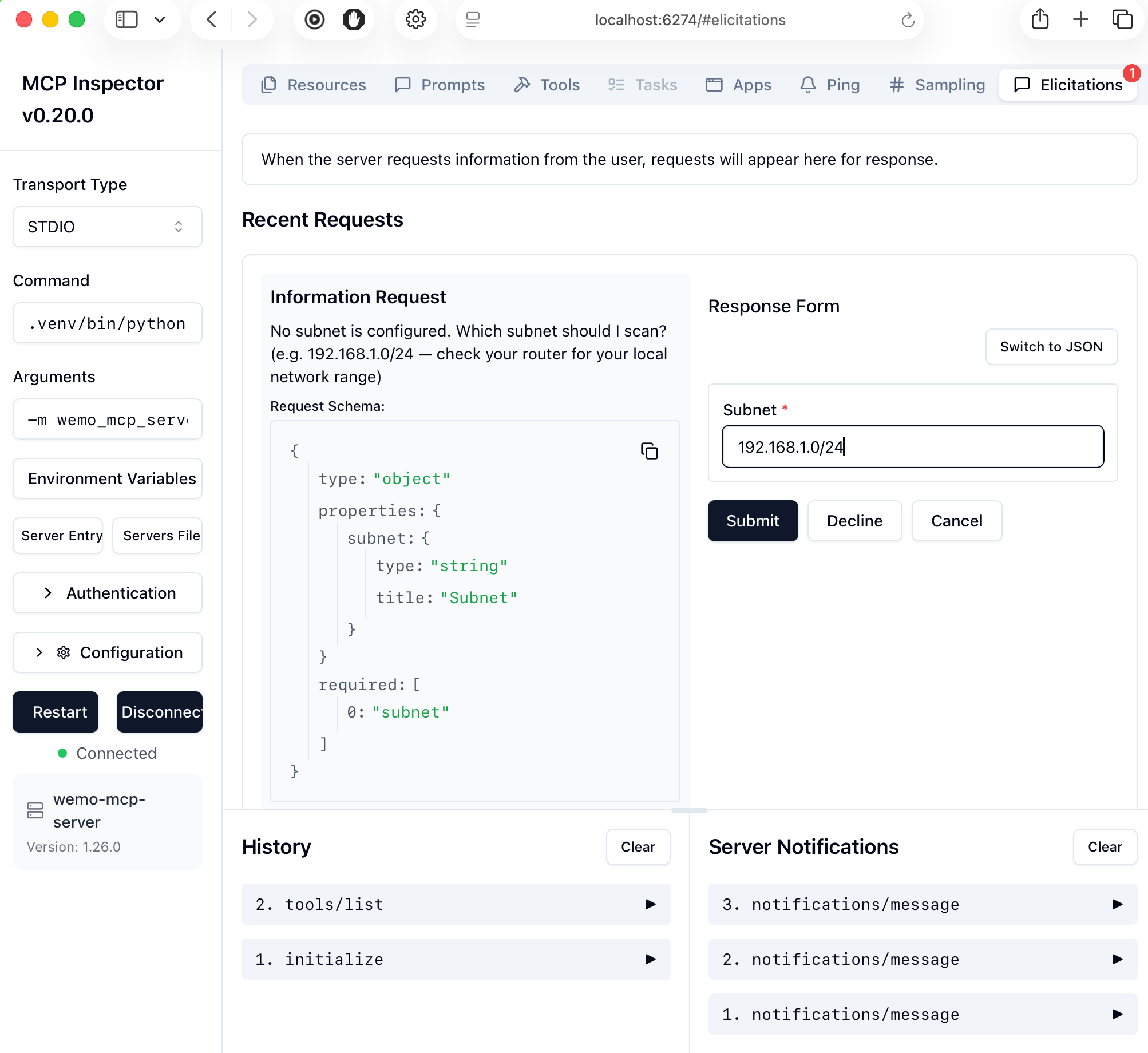
Elicitation in action — server asks for the subnet rather than scanning the wrong network silently
Client Support Matrix
| Feature | Claude Desktop | VS Code | Cursor | MCP Inspector |
|---|---|---|---|---|
| Tools | ✅ | ✅ | ✅ | ✅ |
| Resources | ⚠️ protocol only | ✅ | ✅ | ✅ |
| Prompts | ⚠️ no slash UI | ✅ / commands | ✅ | ✅ |
| Elicitations | ✅ v1.1+ | ❌ | ❌ | ✅ v0.20+ |
How It Works
Multi-Phase Discovery
The server uses a three-phase discovery process optimized for reliability:
-
Phase 1 - UPnP/SSDP Discovery (Primary)
- Multicast discovery finds all responsive devices (~12s)
- Most reliable method, finds devices that don't respond to port probes
- Uses pywemo's built-in discovery mechanism
-
Phase 2 - Network Port Scanning (Backup)
- Parallel probing of WeMo ports (49152-49155) across subnet
- 60 concurrent workers for fast scanning (~10s for 254 IPs)
- Catches devices missed by UPnP
-
Phase 3 - Device Verification (Backup)
- HTTP verification of active IPs via /setup.xml
- Parallel verification with 60 workers
- Validates and extracts device information
This approach achieves 100% device discovery reliability while maintaining fast scan times (23-30 seconds for complete networks).
Local Control Signal Flow
All device commands travel exclusively over your local network — no cloud hop required at any stage.
Voice path (Google Home + WeMo):
sequenceDiagram
    participant U as User
    participant GH as Google Home Hub
    participant GC as Google Cloud (ASR only)
    participant WD as WeMo Device

    U->>GH: "Hey Google, turn on chandelier"
    GH->>GC: Audio stream for speech-to-text
    GC-->>GH: Intent: {action: ON, device: chandelier}
    GH->>WD: Matter OnOff.On (UDP 5540, LAN)
    WD-->>GH: ACK
    GH-->>U: "OK, turning on chandelier"
MCP path (AI assistant + this server):
sequenceDiagram
    participant U as User
    participant AI as AI Assistant
    participant MS as MCP Server
    participant WD as WeMo Device

    U->>AI: "Turn on the desk light"
    AI->>MS: tools/call control_device("desk light", "on")
    MS->>WD: UPnP/SOAP BinaryState=1 (TCP 49153, LAN)
    WD-->>MS: HTTP 200 OK
    MS-->>AI: {success: true, state: "on"}
    AI-->>U: "Desk light is now on!"
Both paths use local protocols only after the initial voice recognition (Google Cloud handles speech-to-text; Belkin's cloud is never involved).
Feature Comparison
MCP Server vs wemo-ops-center
Comparison of features between this MCP server and the main wemo-ops-center project:
| Feature | wemo-ops-center | MCP Server | Notes |
|---|---|---|---|
| Device Discovery | ✅ UPnP + Port Scan | ✅ Implemented | Multi-phase discovery with 100% reliability |
| Device Control | ✅ On/Off/Toggle | ✅ Implemented | Includes brightness control for dimmers |
| Device Status | ✅ Real-time | ✅ Implemented | Query by name or IP address |
| Device Rename | ✅ Friendly names | ✅ Implemented | Updates device cache automatically |
| HomeKit Codes | ✅ Extract codes | ✅ Implemented | For HomeKit-compatible devices |
| Multi-subnet | ✅ VLAN support | ❌ Planned | Currently single subnet per scan |
| WiFi Provisioning | ✅ Smart setup | ❌ Not planned | Requires PC WiFi connection changes |
| Scheduling | ✅ Time + Solar | ❌ Not planned | Requires persistent daemon (incompatible with MCP model) |
| Maintenance Tools | ✅ Resets | ❌ Not planned | Factory reset, clear WiFi, clear data |
| Profile Management | ✅ Save/Load | ❌ Not planned | WiFi credential profiles for bulk setup |
| User Interface | ✅ GUI + Web | ❌ N/A | MCP uses AI assistant interface |
Legend:
- ✅ Implemented - Feature is available
- ❌ Not planned - Feature conflicts with MCP architecture or use case
- ❌ Planned - Feature could be added in future
Why some features aren't planned for MCP:
- Scheduling: Requires 24/7 background daemon polling. MCP servers are typically invoked on-demand by AI assistants, not run as persistent services.
- WiFi Provisioning: Requires changing the host PC's WiFi connection to device setup networks, which is disruptive and platform-specific.
- Maintenance Tools: Destructive operations (factory reset, etc.) better suited for dedicated GUI with confirmation dialogs.
Current MCP Coverage: 5 of 11 core features (45%) - focused on device discovery, monitoring, and control use cases that fit the MCP model.
Development
Setup
git clone https://github.com/apiarya/wemo-mcp-server.git
cd wemo-mcp-server
uv venv
source .venv/bin/activate  # On Windows: .venv\Scripts\activate
uv sync --dev
Running Tests
# Unit tests (CI-compatible, ~4 seconds, 128 tests)
.venv/bin/python -m pytest tests/test_server.py tests/test_phase2.py tests/test_models.py -v

# With coverage report
pytest tests/test_server.py tests/test_phase2.py tests/test_models.py --cov=wemo_mcp_server --cov-report=html

# E2E tests (requires WeMo devices on network)
python tests/test_e2e.py
Using Development Version
In your MCP client config, use:
{
  "command": "python",
  "args": ["-m", "wemo_mcp_server"],
  "env": {
    "PYTHONPATH": "/path/to/mcp/src"
  }
}
Contributing
Contributions welcome! Please:
- Fork the repository
- Create a feature branch (
git checkout -b feature/amazing-feature) - Make your changes with tests
- Run the test suite (
python tests/test_e2e.py) - Commit your changes (
git commit -m 'Add amazing feature') - Push to the branch (
git push origin feature/amazing-feature) - Open a Pull Request
License
MIT License - see LICENSE file for details.
Acknowledgments
- Built with Model Context Protocol SDK
- Uses pywemo for WeMo device communication
- Related to the wemo-ops-center project (desktop and server applications)
常见问题
io.github.apiarya/wemo 是什么?
控制 WeMo 智能家居设备,支持发现设备、开关切换、亮度调节及 HomeKit 代码管理。
相关 Skills
前端设计
by anthropics
面向组件、页面、海报和 Web 应用开发,按鲜明视觉方向生成可直接落地的前端代码与高质感 UI,适合做 landing page、Dashboard 或美化现有界面,避开千篇一律的 AI 审美。
✎ 想把页面做得既能上线又有设计感,就用前端设计:组件到整站都能产出,难得的是能避开千篇一律的 AI 味。
网页应用测试
by anthropics
用 Playwright 为本地 Web 应用编写自动化测试,支持启动开发服务器、校验前端交互、排查 UI 异常、抓取截图与浏览器日志,适合调试动态页面和回归验证。
✎ 借助 Playwright 一站式验证本地 Web 应用前端功能,调 UI 时还能同步查看日志和截图,定位问题更快。
网页构建器
by anthropics
面向复杂 claude.ai HTML artifact 开发,快速初始化 React + Tailwind CSS + shadcn/ui 项目并打包为单文件 HTML,适合需要状态管理、路由或多组件交互的页面。
✎ 在 claude.ai 里做复杂网页 Artifact 很省心,多组件、状态和路由都能顺手搭起来,React、Tailwind 与 shadcn/ui 组合效率高、成品也更精致。
相关 MCP Server
GitHub
编辑精选by GitHub
GitHub 是 MCP 官方参考服务器,让 Claude 直接读写你的代码仓库和 Issues。
✎ 这个参考服务器解决了开发者想让 AI 安全访问 GitHub 数据的问题,适合需要自动化代码审查或 Issue 管理的团队。但注意它只是参考实现,生产环境得自己加固安全。
Context7 文档查询
编辑精选by Context7
Context7 是实时拉取最新文档和代码示例的智能助手,让你告别过时资料。
✎ 它能解决开发者查找文档时信息滞后的问题,特别适合快速上手新库或跟进更新。不过,依赖外部源可能导致偶尔的数据延迟,建议结合官方文档使用。
by tldraw
tldraw 是让 AI 助手直接在无限画布上绘图和协作的 MCP 服务器。
✎ 这解决了 AI 只能输出文本、无法视觉化协作的痛点——想象让 Claude 帮你画流程图或白板讨论。最适合需要快速原型设计或头脑风暴的开发者。不过,目前它只是个基础连接器,你得自己搭建画布应用才能发挥全部潜力。